
Are you tired of running out of credits on expensive AI video platforms? Or maybe you’re worried about privacy and want to keep your creative projects on your own machine.
If you have a decent PC, there is a better way.
Today, we’re going to walk through how to generate high-quality AI videos (complete with audio and narration!) entirely for free, right on your computer. We will be using powerful open-source models like LTX-2 and Wan, all managed through a user-friendly tool called Pinokio.
No subscriptions. No usage limits. 100% private. Let’s dive in.
🛑 Step 0: Check Your Hardware
Before we start downloading, we need to make sure your rig can handle the heat. AI video generation is resource-intensive.
You will need a computer with a dedicated NVIDIA graphics card (GPU).
- Minimum: 6–8 GB of VRAM.
- Recommended: 12GB+ (allows for better performance and longer clips).
How to check your VRAM (Windows):
- Press
Ctrl + Shift + Escto open Task Manager. - Click on the Performance tab on the left.
- Select GPU.
- Look for the number next to “Dedicated GPU Memory.”
If you have at least 6GB, you’re good to go!
🛠️ Step 1: Install Pinokio (The “Steam” of AI)

Installing AI tools used to be a nightmare of Python versions, CUDA drivers, and command lines. Enter Pinokio. Think of Pinokio as a one-click installer for AI—similar to how Steam works for games. It handles all the messy code stuff for you.
- Head to the Pinokio website.
- Click Download and select your OS (Windows, Mac, or Linux).
- Run the installer.
- When prompted for a project name, the default is fine. Click Download and then Install.
Note: The initial install might take a few minutes as it grabs necessary dependencies. You only have to do this once.
📥 Step 2: Install Wan2GP
Once Pinokio is open, you’ll see a dashboard. We need a specific script called Wan2GP to run our video models.
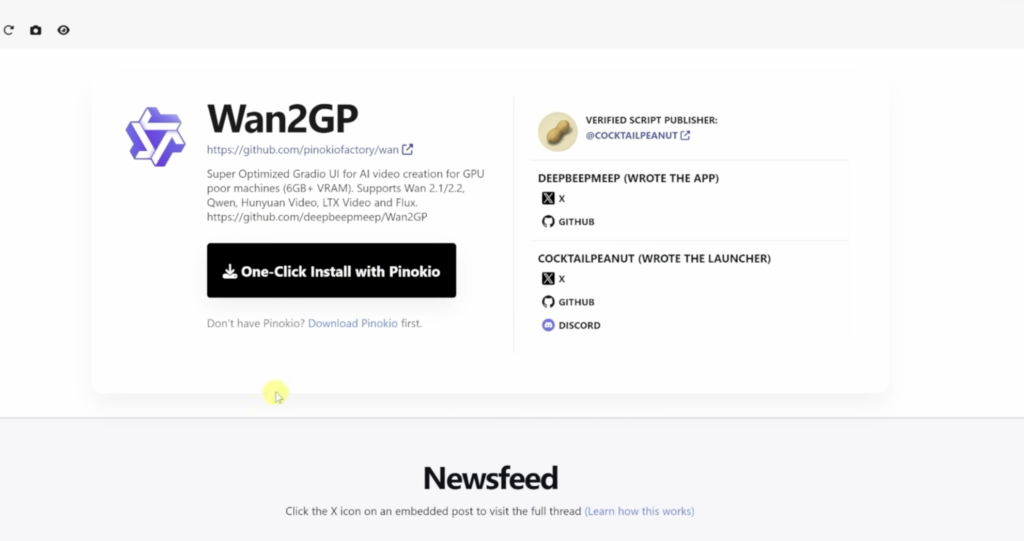
- Click on the Discover button.
- Search for “Wan2GP”.
- Click Install.
- Pinokio will list the dependencies. Just click Install at the bottom and let it run.
Once finished, click the icon to launch it and hit Start. When the web interface loads in your browser, you are ready to create.
🎬 Step 3: Configure Your Model (LTX-2)
In the Wan2GP interface, you’ll see a Video Generator tab. Here is how to set it up for the best results:
- Model Selection: Choose LTX-2. This is a newer model that is impressive because it can generate video, sound, and narration simultaneously.
- Model Type: Select Distilled.
- Why? The distilled version is about half the size (~20GB) of the default model. It runs much smoother on consumer graphics cards with very little loss in quality.
- Performance Profile: Go to the Configuration tab -> Performance. Choose a profile that matches your VRAM (e.g., Profile 2 if you have around 12GB VRAM).
🎥 Step 4: Generate Your First Video
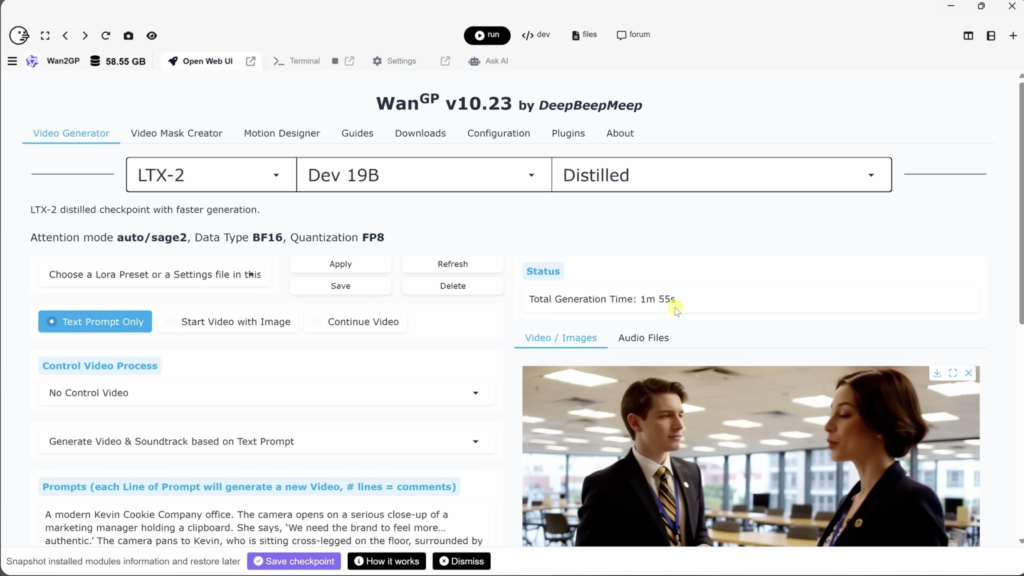
Now for the fun part. Go back to the Video Generator tab.
Text-to-Video
- Prompt: Describe what you want to see.
- Pro Tip: You can script dialogue! Try adding something like: “She looks at the camera and says, ‘This is incredible.’” LTX-2 will attempt to lip-sync and generate the audio.
- Resolution: Start with a lower resolution (like 480p or 720p) to test your prompt.
- Aspect Ratio: Choose 16:9 for YouTube or 9:16 for TikTok/Reels.
- Duration: Set your frame count (e.g., 240 frames is roughly 10 seconds).
- Hit Generate.
Note on Speed: The first time you run a prompt, it may take a minute or two to load the model into memory. Subsequent generations will be much faster (often around 30 seconds).
Image-to-Video
Want to animate a still photo?
- Select “Start Video with Image” at the top.
- Drag and drop your image into the media box.
- Write a prompt describing the motion (e.g., “The snow continues to fall as the camera pans forward”).
- Hit Generate.
📂 Where are my files?
Pinokio saves your masterpieces in a specific folder structure. To find them:
- Click the “Total Space” tab at the top of the Wan2GP window to open File Explorer.
- Navigate to:
wan.git>app>outputs.
Final Thoughts
We are entering a new era where you don’t need a massive server farm to create AI media. With tools like Pinokio and LTX-2, you have a creative studio right on your desktop—free, private, and unlimited.
Leave a Reply